
By GoldstoneTech · Published 21 November 2026 · Last reviewed 21 November 2026
How to turn your CV into a PDF an application portal accepts
A worked example: write your CV in Word, convert it to PDF in your browser without uploading it, check the result, and avoid the layout problems that cause rejections.
How to convert your CV from Word to PDF
Finish and save your CV as .docx
Write it in Word, or download it as .docx from Google Docs. Keep the layout simple: a single column, with contact details in the body of the page rather than in a header.
Open Word to PDF and add the file
Drop the .docx file into the tool. It is read in your browser and is not uploaded.
Choose A4 or Letter and convert
Use A4 for the UK and most of Europe and Letter for the US. If your document already sets its own page size, that size is used.
Open the PDF and check every page
Look at the page count, the line breaks, and the contact details. Then name the file clearly, for example Firstname-Lastname-CV.pdf, before you upload it to the portal.
A worked example
This walkthrough uses a made-up CV for “Alex Morgan”. It is a sample with invented details, not a real person’s document. The file is a one-page .docx of about 5 KB with a heading, a profile, two jobs with bullet points, a small skills table, and an education line. The steps and screenshots are from running it on the live site on 21 November 2026.
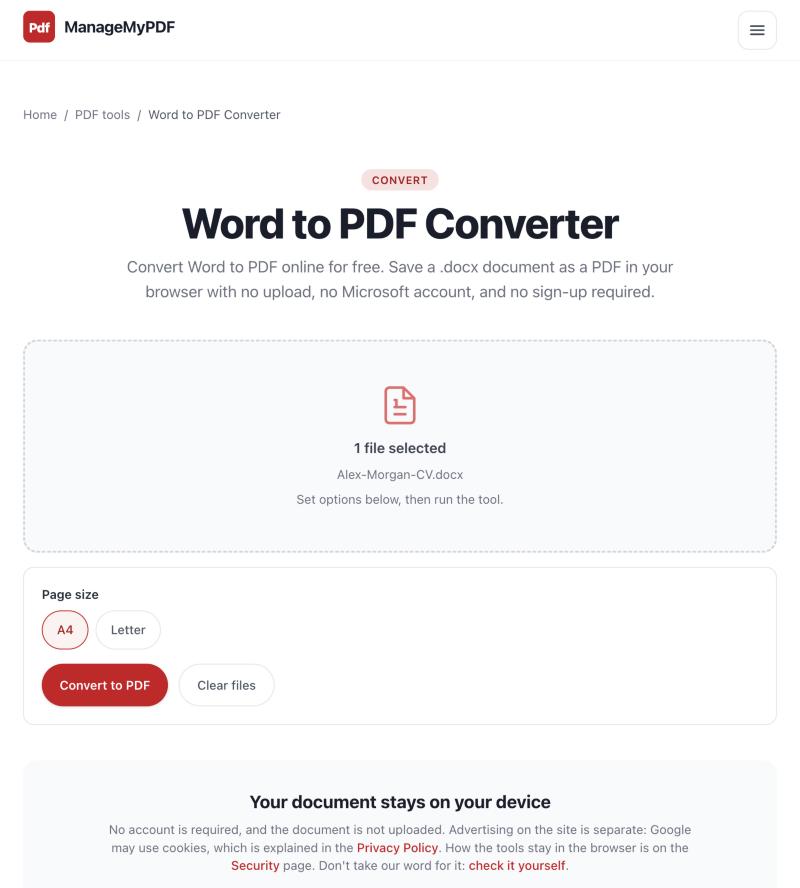
Dropping the file into Word to PDF and choosing A4 took a few seconds. The page shows the file name and a Convert to PDF button.
What you get
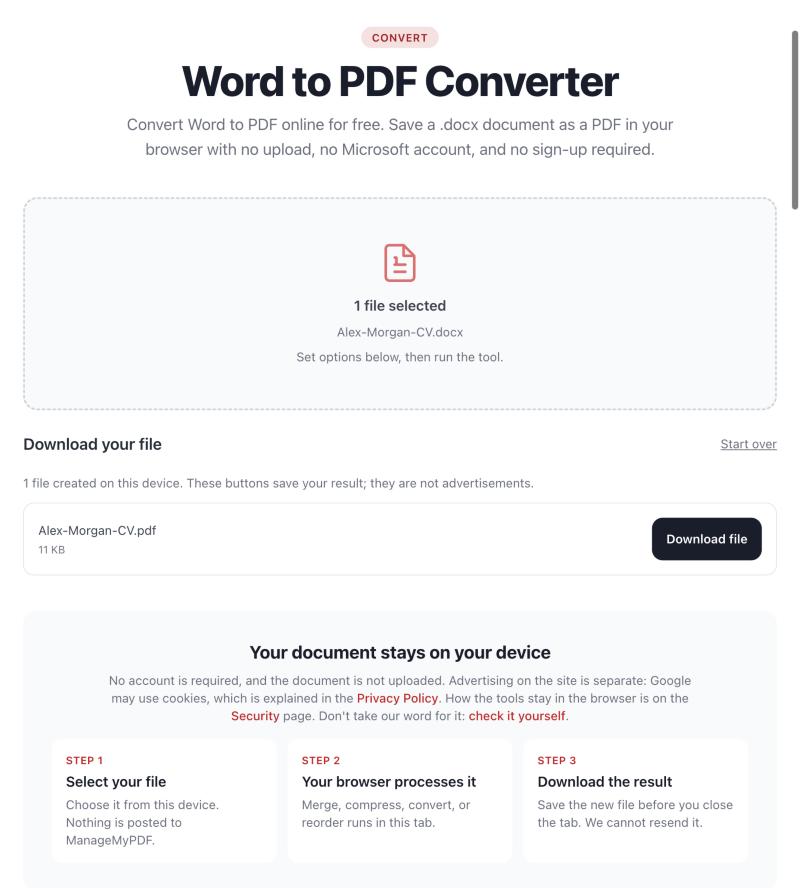
Converting produced Alex-Morgan-CV.pdf at 11 KB, one A4 page. Nothing was uploaded: the only request the page made during conversion was for its own font file. The download button saves the PDF to your device.
Check the result before you upload it
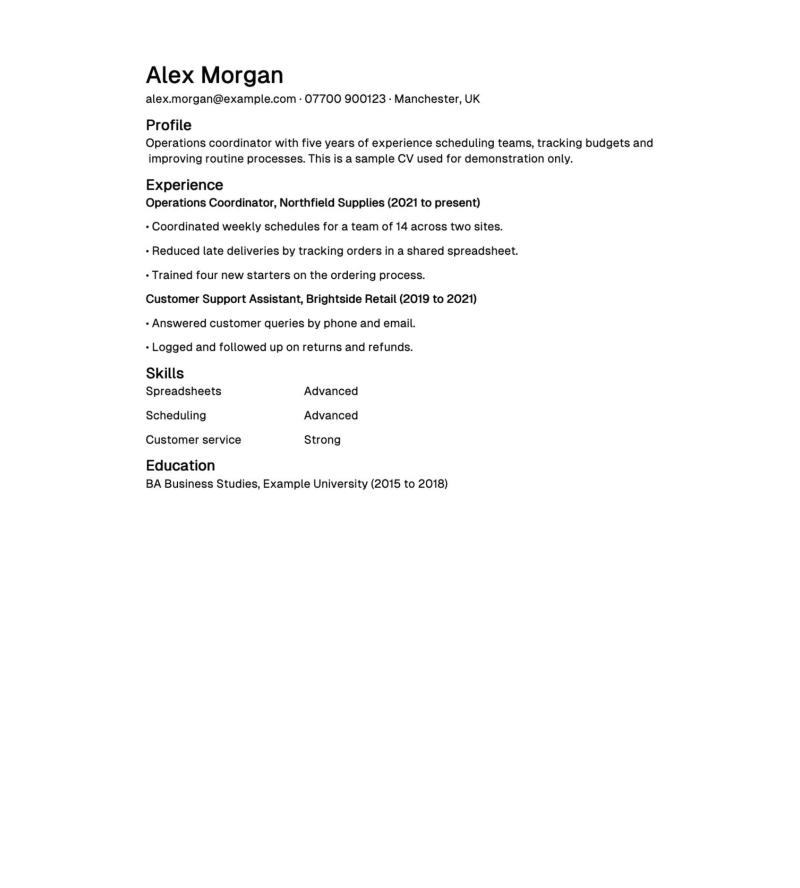
Open the PDF and compare it with your Word file. In the sample, the heading, the bold job titles, the bullet points, and the skills table all came through as text on one page. The typeface is the converter’s own, so it does not match the Word original exactly. That is normal and worth checking for line breaks that landed in an odd place.
Check the contact details first. A recruiter who cannot see your email address cannot reply.
What to avoid in a CV you plan to convert
Headers, footers, columns, text boxes, and SmartArt are not converted, and many CV templates rely on them. Use a single-column layout and put your name and contact details in the body. If you want a designed template to stay exactly as it is, export the PDF from Word itself instead.
If your CV contains text in Arabic, Hebrew, Hindi, Thai, Chinese, Japanese, or Korean, the converter cannot draw those characters and the tool will warn you. Use Save as PDF in Word for that file.
When the portal says the file is too big
A text CV is far below any normal portal limit. The size problem usually appears when you combine a CV with scanned certificates. In that case merge the files first, then compress the combined PDF. The related guides cover both steps.
How to turn your CV into a PDF an application portal accepts FAQ
Will my CV look exactly like it does in Word?
Not exactly. The converter draws text in its own typeface, so the font differs from Word and line breaks or page breaks can move. Check the PDF before you send it. If the exact layout matters, use Save as PDF in Word.
Why was my header or two-column template missing?
Headers, footers, columns, and text boxes are not converted. Many CV templates use them. Move your contact details into the body and use a single column, or use Word’s own Save as PDF for that template.
Do I need to compress my CV PDF?
Usually not. A text-only CV is tiny; the sample in this guide came out at 11 KB. Compress only if you added a large photo or scanned pages and the portal has a size limit.
Related PDF tools
Word to PDF Converter
Save a .docx file as a PDF in this browser. Layout will not match Microsoft Word exactly.
Compress PDF Online
Shrink a PDF on this device. Low keeps selectable text; Medium and High redraw pages as JPEG.
Merge PDF Files
Join two or more PDFs into one file, in the order you set. Files stay on this device.
Related guides
When a browser Word to PDF converter is enough
What ManageMyPDF keeps from a .docx file, what it drops, and when you should export PDF from Word or LibreOffice instead.
How to shrink a PDF so you can email it
Practical steps to make a PDF smaller for email using ManageMyPDF: what Low, Medium, and High actually change, and when compression barely helps.
How to combine PDFs for a job or school packet
A working order for cover letters, forms, and certificates: fix page order, merge the files, then compress if the packet is too large to send.
More write-ups are in the PDF guides.