
By GoldstoneTech · Published 22 November 2026 · Last reviewed 22 November 2026
How to turn phone photos of signed pages into one PDF
A worked example of turning three phone photos of a signed document into one A4 PDF in the right order, what the tool does not fix, and how to check it before you send it.
How to combine phone photos of a signed document into one PDF
Photograph each page flat and in good light
Put the page on a plain surface, take the photo from directly above, and keep the whole page in frame. Shadows and tilt are not corrected later.
Crop each photo and save it as JPG or PNG
Crop away the table in your Photos app. On iPhone, export HEIC photos as JPEG first, because this converter takes JPG, JPEG and PNG only.
Add the photos to JPG to PDF
Drop all the photos in. Name them with numbers, such as 1-terms.jpg, so the order is obvious in the list.
Set the order and the page size
Use Earlier and Later until page one is first and the signature page is last. Choose A4 or Letter if the recipient expects a standard page, or Fit to image to keep each photo’s shape.
Convert, then open the PDF and read every page
Check the page count, the order, and that the signature and date are legible before you send it.
The example: three photos of a sample agreement
This walkthrough uses three invented pages made for the test, not a real document: terms, a schedule, and a signature page. They were generated as 3024 by 4032 pixel photos with a slightly tilted page on a dark table, to mimic a phone. Together they were about 1 MB, so real phone photos, which are usually bigger, will give larger files. The steps were run on the live site on 22 November 2026.
The photos were added in the wrong order on purpose, with the signature page first. Photos are joined in the order the list shows.
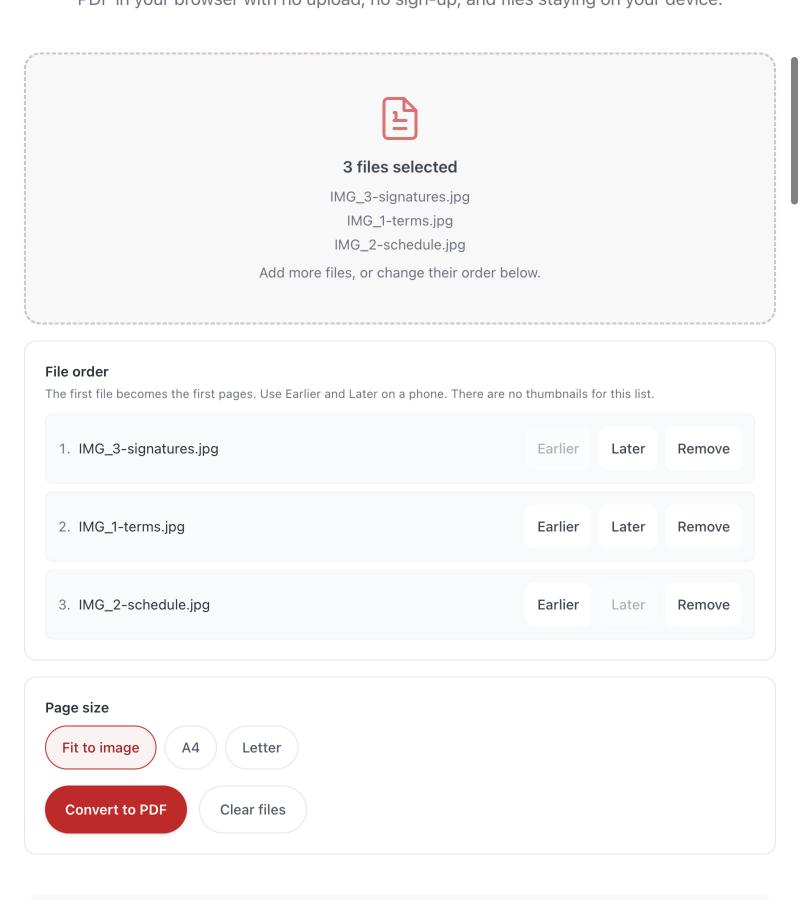
Fix the order, then convert
Pressing Later on the signature photo twice moved it to the end: terms, schedule, signatures. With A4 selected and Convert to PDF clicked, the tool produced one file of about 1 MB. The page made no request carrying the photos.
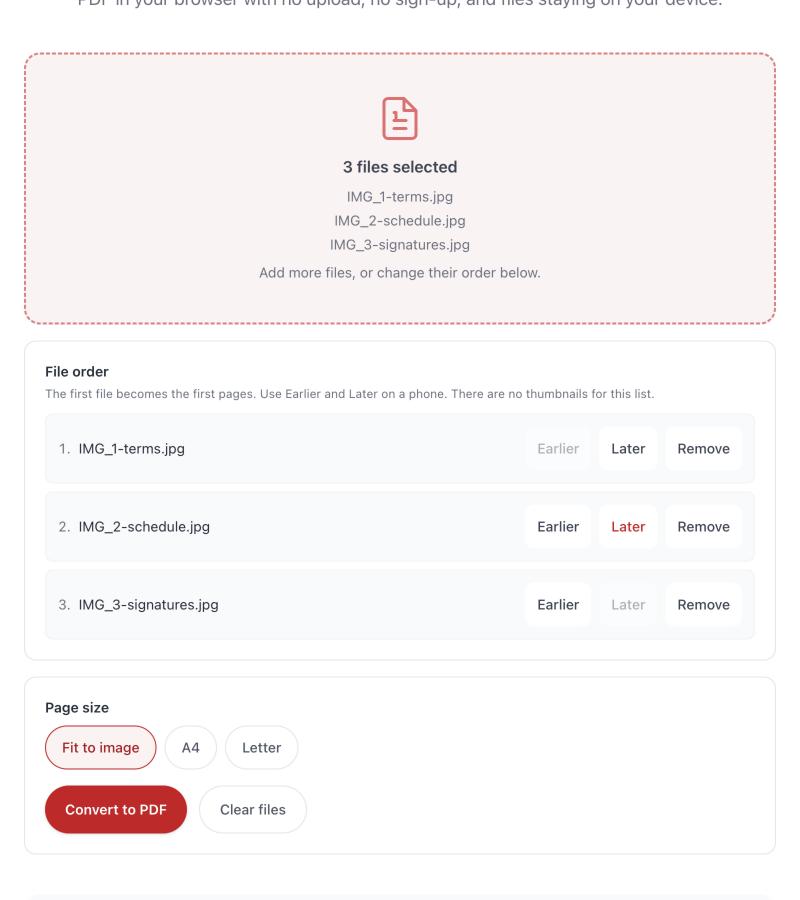
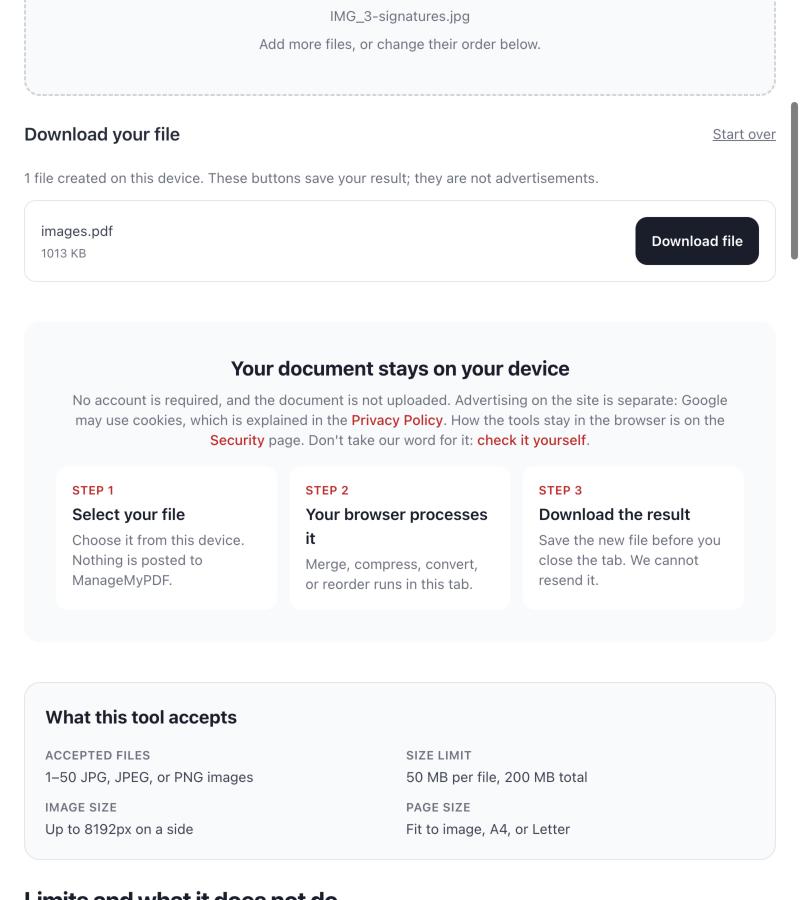
What the check showed, including the limit
To check the result we ran the PDF through PDF to JPG. It had three pages in the right order, each 1240 by 1753 pixels, which is A4 at 150 dpi. The signature, with its date line, is on page three.
The check also showed what the tool does not do. The dark table around the paper and the slight tilt are still in each page, because the tool places the photo as it is. This is why we suggest cropping and straightening in your Photos app before you add the files. It does not detect page edges or improve legibility.
Before you send it
Open the PDF and read every page at full size, especially the signature and date. If a portal rejects the file for size, compress it and compare the sizes shown. Keep the original photos in case someone asks for them.
This is general information about making a PDF from photos, not legal advice. Whether a photographed signature is acceptable depends on the recipient and the type of document.
How to turn phone photos of signed pages into one PDF FAQ
Will the tool straighten or crop the photo?
No. It places the image on the page as it is. A tilted photo stays tilted and a table around the page stays in the picture, so crop and rotate first in your Photos app.
Is a photo of a signed page accepted as a signed document?
That depends on who is asking and what the document is. Some recipients accept a clear scan or photo, some want the original or an electronic signature. This guide covers making the file, not whether it is valid. Ask the recipient.
Can I make the PDF smaller?
Yes, compress it afterwards. Medium and High redraw each page as an image, which is how the photos are stored already, so the text was never selectable. Check the signature is still readable after compressing.
Related PDF tools
JPG to PDF Converter
Combine JPEG or PNG images into a PDF. Move files earlier or later to set page order.
Compress PDF Online
Shrink a PDF on this device. Low keeps selectable text; Medium and High redraw pages as JPEG.
Merge PDF Files
Join two or more PDFs into one file, in the order you set. Files stay on this device.
Related guides
How to turn photos into one PDF
How to put JPEG or PNG photos into one PDF: page order, A4 or Letter, phone scans, and the formats this browser converter will not accept.
How to put a rental application packet into one PDF
A worked example of merging a cover letter, application form, and scanned payslips into one PDF in the right order, then shrinking it, without uploading your documents.
Is it safe to merge or compress a PDF online?
What actually happens to a document when you use an online PDF tool, the real risks of upload-based sites, and how to decide what is safe for your own files.
More write-ups are in the PDF guides.