
By GoldstoneTech · Published 22 November 2026 · Last reviewed 22 November 2026
How to assemble sensitive paperwork into one PDF without uploading it
A worked example of combining an agreement, an ID copy and a cover note into one PDF in your browser, with the request check we ran to see whether anything was sent.
How to combine sensitive documents into one PDF without uploading them
Decide whether the document needs to be on a website at all
For an ID copy, an agreement or a payslip, prefer a tool that processes the file on your device. Ask whether the site uploads it and how long it keeps it.
Test the tool on a harmless file first
Open your browser’s developer tools, go to the Network tab, clear it, and run the tool on a dummy file. Look for a request that sends the file out. Our checking guide shows how.
Add your documents and set the order
Name them with numbers, add them to Merge PDF, and use Earlier and Later until the order is what the recipient asked for.
Merge, then read the result
Open the merged PDF and check the page count, the order, and that nothing is missing before you send it.
Remove copies you no longer need
The merged file is saved in your Downloads folder. When it has been sent and you do not need it, delete it, and delete the copy in your browser’s download list.
The example: an invented agreement, ID copy and cover note
This walkthrough uses three invented one-page PDFs for a made-up person: a cover note, a sample agreement and a sample ID copy with placeholder numbers. They contain no real data. The steps were run on the live site on 22 November 2026.
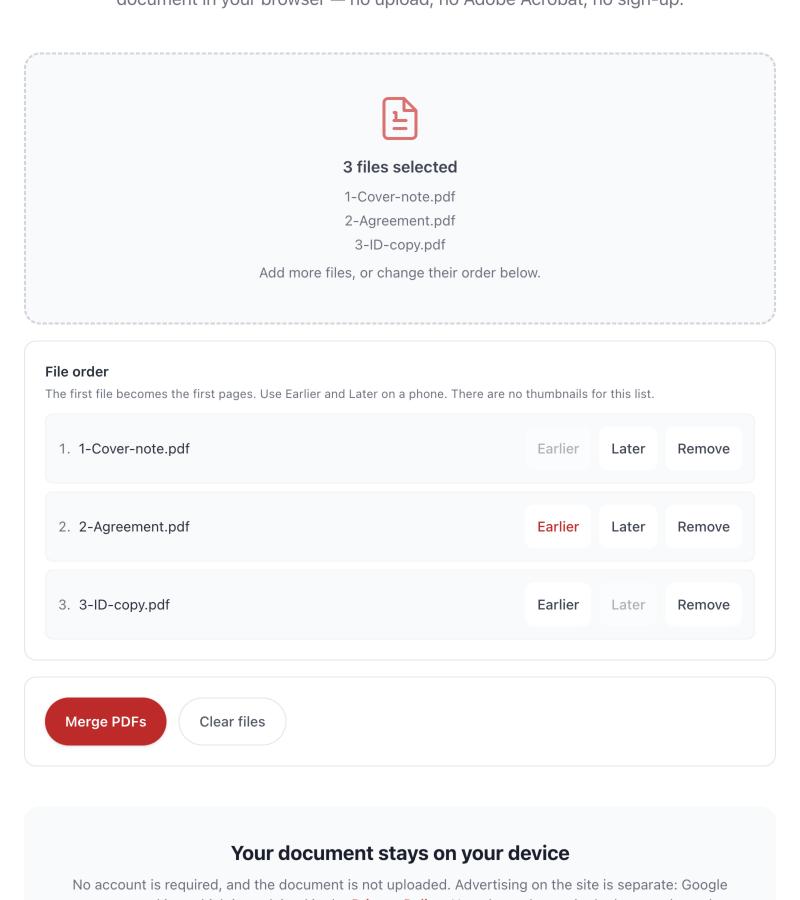
The files were added in the wrong order on purpose, with the cover note last, to show how the order list works.
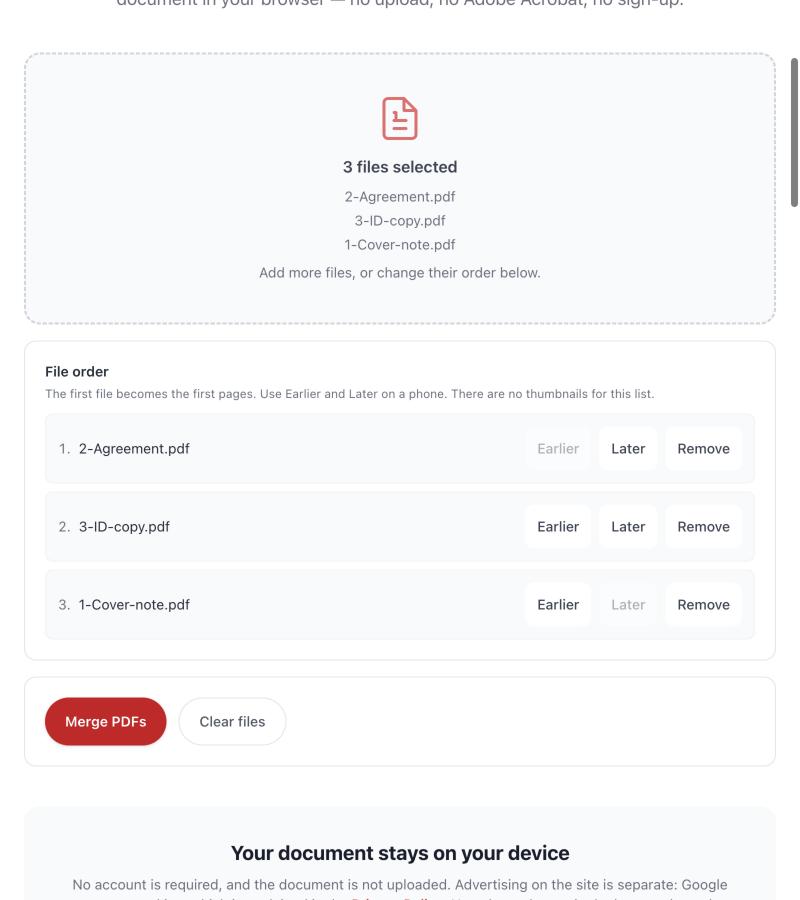
Fix the order and merge
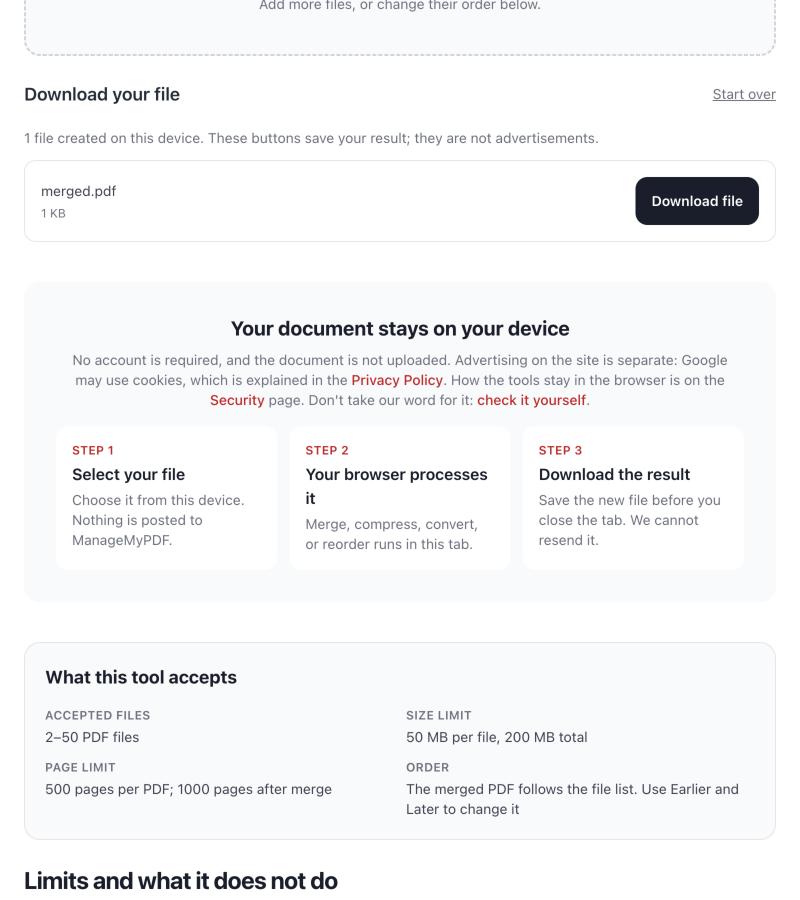
Pressing Earlier on the cover note twice moved it to the top: cover note, agreement, ID copy. Merge PDFs produced one three-page file, merged.pdf.
What we checked for requests
Before the merge we added a small logger to the page that records any fetch, XMLHttpRequest and beacon call, and noted how many resources the page had loaded. After the merge, the logger had recorded no calls and the page had loaded no new resources. So in this run, nothing was sent while the files were added, ordered and merged.
Two limits on that result. It covers this page on this day in one browser, and it is not a replacement for checking yourself. Google’s advertising scripts also run on the site as a separate matter, and the Privacy Policy explains them. They are not given your document.
What “not uploaded” does not cover
Merging on your device keeps the document away from our server. It does not protect the copy in your Downloads folder, the email you attach it to, or the portal you send it to. Treat the merged file as you would the originals.
This is general information, not legal advice. If a landlord, employer or authority has rules about how identity documents must be sent, follow theirs.
How to assemble sensitive paperwork into one PDF without uploading it FAQ
Does “not uploaded” mean the document is safe?
No. It means this site does not send the document to its server. The file is still on your device, in your Downloads folder and wherever you send it. Keep the usual care: a locked device, and only send the file to the person who needs it.
How can I be sure nothing is sent?
You can check yourself. Open developer tools, watch the Network tab while you run the tool, and see whether any request carries your file. We ran that check for this guide, but your own check on your own browser is the one that counts.
Should I redact an ID copy before sending it?
Often it is wise to send only what is needed, for example by marking a copy with its purpose and date, or blocking out numbers the recipient does not need. This tool does not edit page content. Do that first in another app, then merge. Whether redaction is allowed depends on the recipient.
Related PDF tools
Related guides
How to check that a PDF tool does not upload your file
Use your browser’s network panel to see whether a PDF tool sends your document anywhere, what normal ad and hosting requests look like, and what this check cannot prove.
Five things to check before using a PDF tool with a private document
A short checklist for any online PDF tool: upload behaviour, retention, accounts, limits, and honesty about what it cannot do, with examples from ManageMyPDF.
Is it safe to merge or compress a PDF online?
What actually happens to a document when you use an online PDF tool, the real risks of upload-based sites, and how to decide what is safe for your own files.
More write-ups are in the PDF guides.